|
||||
I'm in the process of finally tearing down my darkroom. I like to think I'm a reasonably well-organized guy; well maybe not, if I consider the clutter in my office. But faithful as I have been in labeling pages filled with transparencies or negatives and by annotating contact prints with a fat, red China marker, I am finding images today I had long forgotten I made and treasures I was convinced I had lost. As I physically pour over the work, holding translucent pages to a window and squinting at |
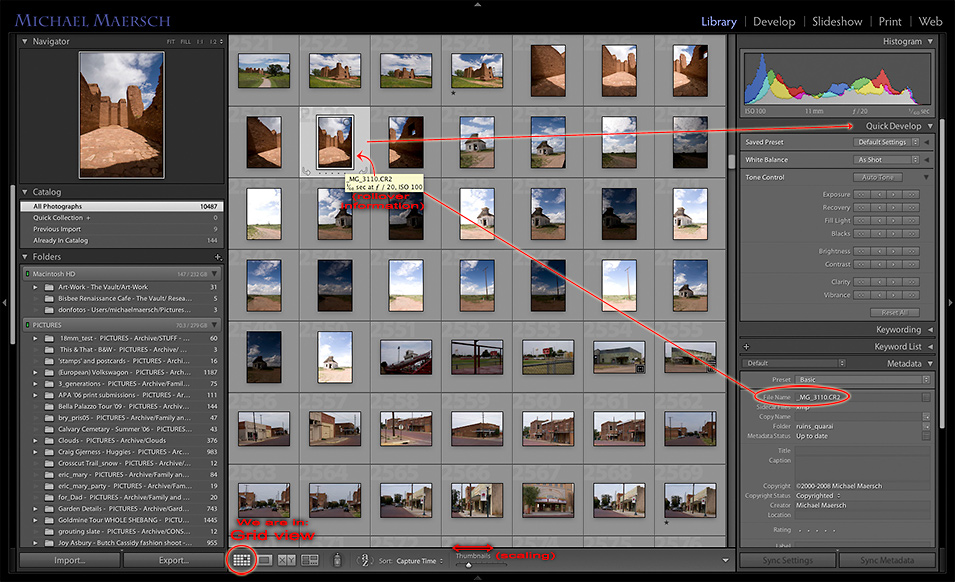
tiny 35mm images in my contact prints, I think about Lightroom's asset management engine, the Library module, I use now to keep organized all my digital photographs and scans. What a pleasure it is for me instead, to sit in a room dimly-lit before a pair of bright screens, able to move from a content-window filled with thumbnails to an enlarged version or series in a single click. I can scale-down an entire collection of thumbnails to get an overview, like laying out a hundred slides on a light table. And if one picture or another needs a little tweak in advance of moving into my (blessedly) dry, oderless darkroom, the Lightroom Develop module, I can utilize the Quick Develop controls in a side panel right here in the Library and tickle the dials to my heart's content. |
|||
|
||||
|
||||
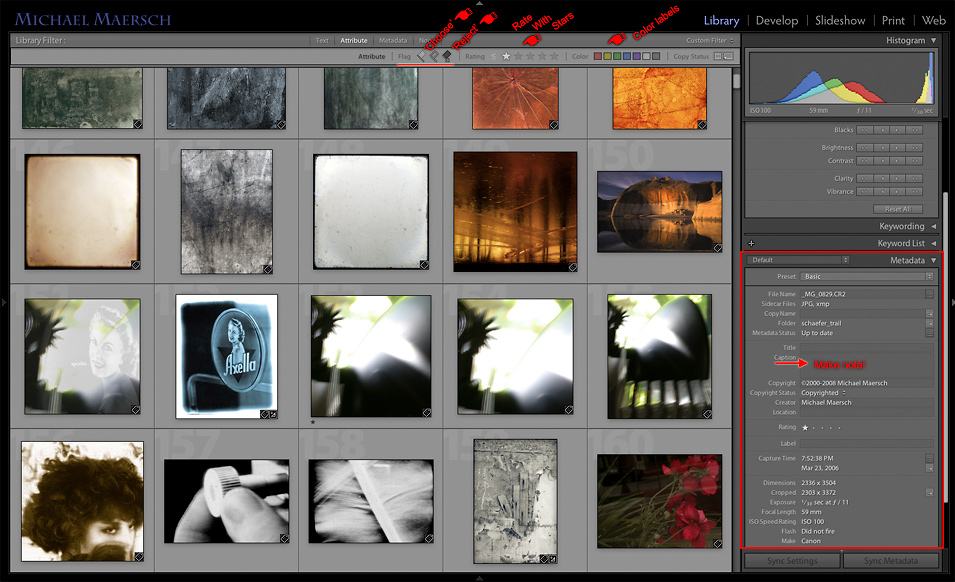
The thumbnails have been scaled-up here in Grid-view. NOTE Library Filters (above) and the Metadata window. (larger view) |
||||
Note here as well, within the Metadata window we are able to title an image while maintaining its original capture name or a series name that we replaced it with upon import. The notes we used to make sure were forever safe in a place we could come back to in the future – say, 'My last road-trip with Dad. The day I showed him the White Rim Trail and it snowed!' will never be lost again. Transfer your hand-written notes or memories within the Caption window here. (And then don't sweat it if you misplace that old field-book for whatever reason. If you back-up your images and your Lightroom catalog regularly, everything you will ever need to know or want to know
|
will be attached to each image worthy of the additional attention you direct to it here as metadata, information recorded to provide context to each image.) Let's say something you made pictures of has been worthy of variation: A portrait, a landscape or perhaps a still life where you have simply moved the camera a bit to the left or right, up or down; when you patiently captured the nuance of emotion with a subject or the subtle changes of light in a sunrise. There will be times one may want to compare a couple or a number of selects to each-other individually or collectively. |
|||
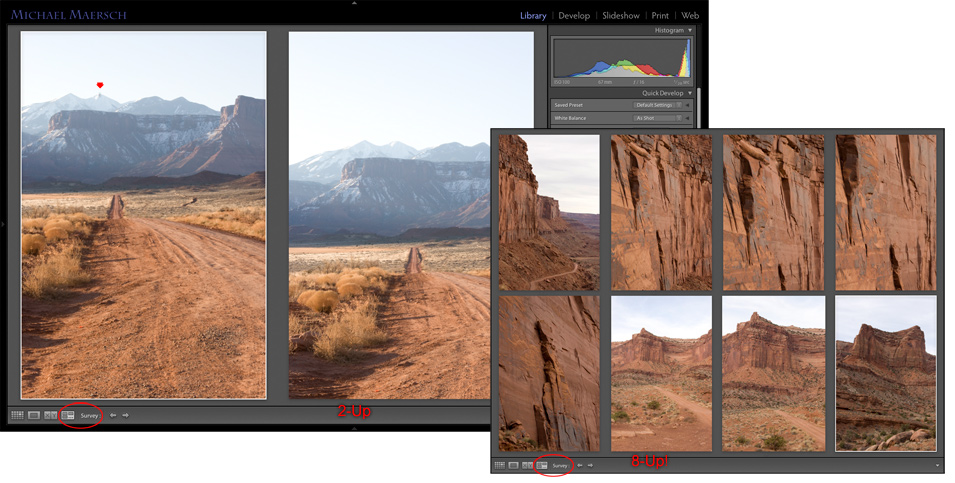 The Library Module's Survey-view. (large view) |
||||
|
||||
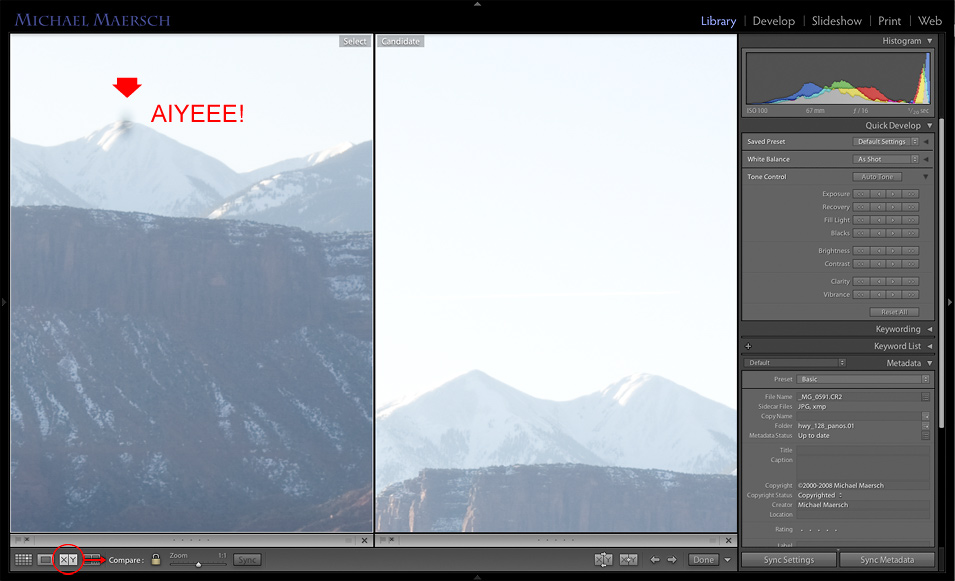 The Library Module's Compare-view: Image is at 1:1 zoom-level (100% of pixel dimensions) (large view) |
||||
By switching between the Grid-view (use the 'G' key), Survey-view ('N' key), 'Compare' (the 'C' key) and the Loupe-view ('E' key) each photographer is able to work within the most-amazing hybrid 'light table' any of us could ever hope to have available!. NOTE that you can always have access to these four view-modes within the |
Library module by dropping down from the 'View' menu up-top; but learn some important keyboard shortcuts and save your hand and wrist a bit of wear-and-tear. Much more at the workshop... |
|||
Next-up, the Slideshow module. |
||||
About Mike Maersch | Back to Lightroom Workshop Page | Contact | The Book | Wassup |
||||